 LocalHub
Home and widgets
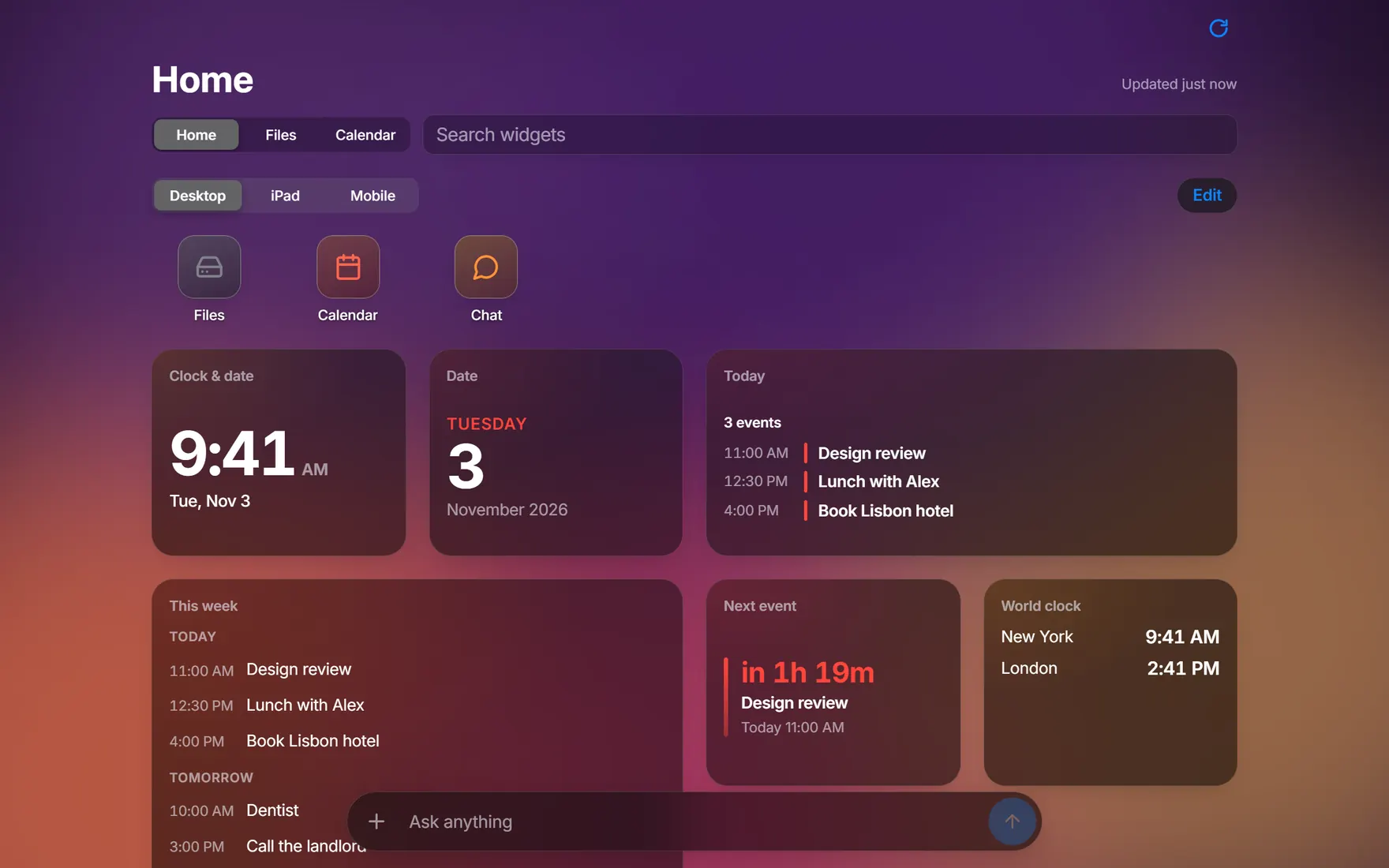
Home is the first tab: your apps, websites and widgets on pages you arrange yourself.
Change what’s on it
A new hub starts with a few apps and clocks. To change them, press Edit at the top, or hold down on anything on Home. You can also right-click empty space and choose Edit Home.
- Move something by dragging it.
- Remove something with the x on its corner.
- Resize a widget with the size button on it: small, medium or large.
- Finish by pressing Done.
Right-clicking a widget gives you its sizes, Widget Options, Open and Remove. Reset puts Home back as it was when you started.
Add widgets, apps and websites
Press Add while editing, or right-click empty space and choose Add Widget… or Add App…. The sheet has two tabs.
- Widgets
- Search or browse, choose a size and press Add. For example, Recent downloads shows the newest items in your Downloads folder.
- Apps
- LocalHub’s own apps, a short list of suggested websites and Add a Website for any other site. Websites open in the Browser pop-up.
- Your Files
- In the Apps tab, Add from File… turns a single web page file of up to 512 KB into a widget. It runs sealed off, with no network, no saved data and no way into the rest of LocalHub.
Pages, groups and stacks
- Pages
- Home doesn’t scroll. When you need more room, press Add Page while editing. Move between pages by swiping, with the mouse wheel, with the arrow keys or with the dots.
- Groups
- While editing, hold an app over another for a moment. They become a folder, with its name ready to type. You can have 20 groups, with up to 24 apps in each.
- Stacks
- While editing, hold a widget over another. A stack holds 2 to 8 widgets at one size, and you scroll to move through them.
- Desktop, iPad, Mobile
- Home keeps a separate arrangement for each size of screen. The switch at the top lets you arrange each one from here.
Choose your tabs
Press Edit Tabs while editing, or find it in search. Drag tabs to reorder them or turn them off. Home can’t be hidden.
Below them are the add-ons. Turning one on or off reloads the page.
- This Computer
- Running services, health and files of this computer.
- Calendar
- See Calendar.
- Drives
- Disk space for each drive on the Files tab.
- AI, Stripe, Cloud
- Your balances and read-only numbers, from the optional keys in first-run setup.
- Server
- Details of a server of yours. There’s no screen for setting that up yet.
These pages don’t cover adding a key after setup yet.
Keys
- 1 to 9
- Go to that tab.
- /
- Go to the search box on this page.
- R
- Refresh this page’s numbers.